Sometimes Windows 7 Operating System fails to read the correct user profile properly, and instead, loads with a temporary profile. If you are keen you will see the following message: You have been logged on with Temporary profile
This is how you fix the temporary profile problem on Windows 7:
- Before do anything, restart the computer 2 or 3 times to see whether it’s going back to your old correct profile. If this doesn’t work, go to the next step.
- Rename the temp profile registry and revert back the old registry settings for the correct profile. This methods works especially if the profile is not completely corrupt.
- Log in with your temporary profile if your account has administrative rights or with the local administrator account.
- Start the registry editor by typing regedit in find box of Windows 7.
-
Navigate to HKEY_LOCAL_MACHINE\SOFTWARE\Microsoft\Windows NT\CurrentVersion\ProfileList

-
Look for the profile with the ".bak". This is the CORRECT old profile.

-
Rename the profile that does not have ".bak" by adding "_new" to the end. You can really add anything to change the name of this profile, just be sure to rename the profile with the matching SID. Next remove the ".bak" from the correct profile.

- Log off (or restart) and then log back in with the profile that was problematic. You should get your correct profile with icons and profile settings back in Windows 7, (if you are lucky enough).
If this effort is not successful and Windows 7 computer loads with temporary profile again, it means, most likely, that it created a registry key with .bak again, which suggests the use profile is corrupted and Windows 7 is not reading it properly.
If this happens repair the corrupted files. Usually the corrupted Ntuser files cause this issue.
So, first, re-do all the steps above, then
Run the Check Disk on the partition that contains the user profile and restart the computer.
If this fails to correct the issue, you will need to remove the offending profile and recreate it as follows:
To remove the domain profile and recreate it:
- Follow the above steps to clean up the registry, then log in as a local administrator.
- Navigate to the profile directory C:\Users\NetID and back up any data that is needed from the profile.
-
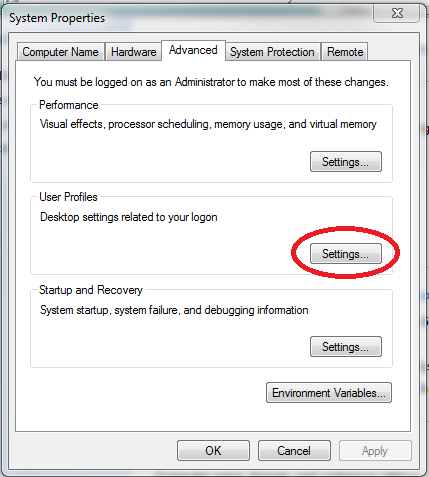
Navigate to All Control Panel Items>>System>>Advanced system
settings>>Settings
-
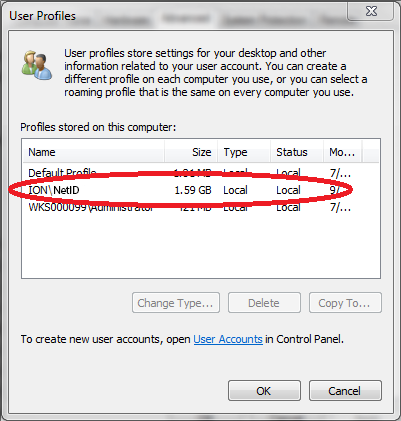
Locate the corrupt profile ION\NetID and Delete this profile.
- Navigate to C:\Users and make sure the folder titled by the corrupt profile NetID is gone. If not, delete this folder.
- Log out or restart and log back in using the previously corrupt NetID profile. Windows will build a new profile for this NetID from the Default profile.
- Restore any data to the profile that was previously backed up.
Comments
Post a Comment
We Appreciate Your Feedback. Tell Us What You Think About Us. We Are Glad to Improve Our Service to You